herdr-gh-actions: CI status in the same terminal as my agents
Over the last few months more of my day has moved into AI tools. A lot of the work now happens in conversations with coding agents, Claude Code mostly, where I plan a change, argue about the design, let it implement, and review what comes back. That changed what I want from a terminal. I used to want a shell and an editor. Now I want somewhere to keep several agents running at once and see what each of them is doing.
herdr turned out to be that place. It’s a terminal workspace built around agents. Each one gets a pane and often its own git worktree, and the sidebar shows which ones are busy and which are waiting on me. It also has a plugin system, and that’s what got me hooked. With the review plugin I can see at a glance which files an agent touched without leaving the terminal. The one thing I still opened a browser for was CI.
There were already GitHub Actions plugins for herdr. I tried them and kept wanting things they didn’t do. I wanted a status per agent rather than per workspace, and I wanted to read logs and re-run jobs from the keyboard instead of a browser tab. Instead of filing feature requests I wrote my own.
A CI status for every agent
herdr’s sidebar can show small tokens next to each workspace and each agent. The plugin fills one
called $ci. It shows ↑ pushed as soon as a push lands, before GitHub has even queued a run,
then ◌ CI 2m while it runs, then ✓ CI or ✗ CI.
Agents get their own token for the branch their worktree is on. With three agents on three branches I see three statuses, each one next to the agent it belongs to, which was the feature I missed most. A new worktree gets a token by its first push, because the plugin listens for herdr’s worktree and workspace events.
Behind it is a small poller per herdr session. Each tick it asks herdr for its panes, finds the git checkout behind every workspace and agent, reads the branch, and fetches that branch’s runs once, however many panes share it. Tokens expire on their own, so a dead poller can’t leave a stale green tick in the sidebar.
The pane
A status tells you something broke. To find out why, there’s a pane that opens next to whatever I’m working in. It lists the branch’s newest commits with their runs underneath, and each run expands into its jobs and steps.
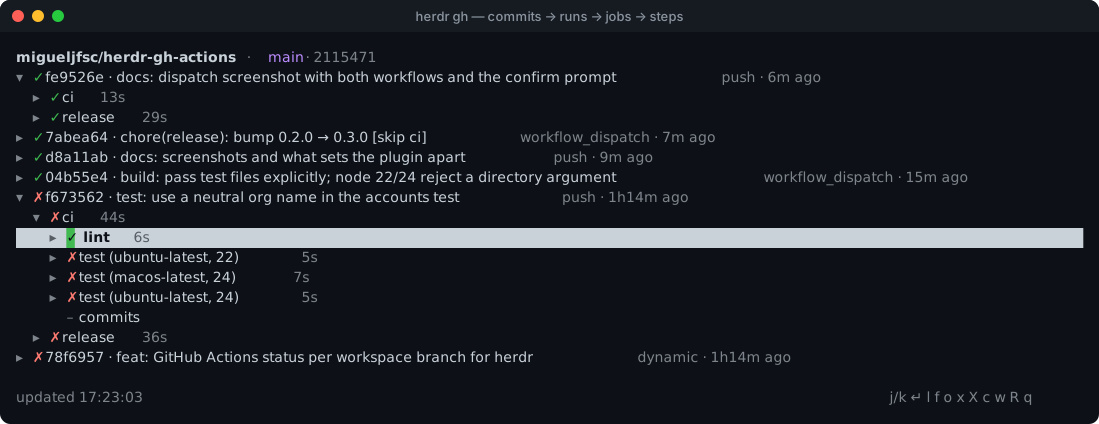
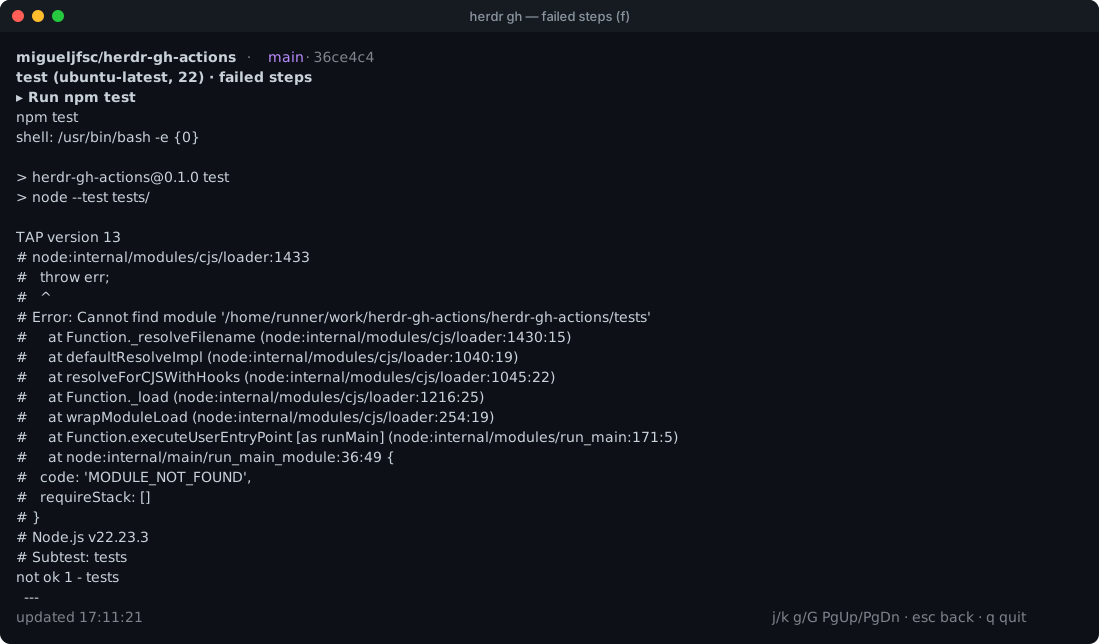
From there I can open a job’s full log or only its failed steps. A failed job’s annotations sit
at the top, so the compiler error or the failing assertion is usually the first thing on screen.
Logs are searchable, and e jumps from one error line to the next.
The rest is the stuff I used to click through on github.com. Re-run failed jobs or the whole run,
cancel, approve a deployment that’s waiting on review, download a run’s artifacts. Running a
workflow by hand opens a small form for its inputs first, with booleans you toggle and choices
you pick from a list. The header shows the branch’s pull request, whether it’s approved or has
conflicts, and checks from other CI systems that Actions doesn’t report. On a feature branch it
also shows whether main is green, which is worth knowing before a rebase.
Everything goes through the gh CLI. There’s nothing to install beyond node and a logged-in
gh, and work and personal GitHub accounts are picked per repo owner.
Handing a failure back to the agent
This is the part that only makes sense with agents around. When an agent’s build fails, it’s the one best placed to fix it, but it has no idea it failed, and copying a log into its prompt by hand gets tedious fast.
Pressing a on a failed run or job writes the annotations and the end of each failed step’s log
to a small Markdown file. Then it types one line into the agent’s pane: what failed, on which
branch, the link to the run and the path to the file. It never presses Enter. The prompt waits in
the agent’s input until I’ve read it. CI output is text the agent will act on, and on a pull
request from a fork somebody else wrote it.
The file is trimmed for a context window. It keeps the last lines of each failed step, because that’s where the error almost always is. Very long lines get cut, since a single minified bundle in a log can be hundreds of kilobytes on one line. Each file has a size cap, and old files get cleaned up, keeping the newest twenty for at most a week. All of those limits are config keys.
The confirmation before sending exists because of a test run. The plugin went looking for an
agent to send a failure to and found exactly one nearby, the agent I was using to build the
plugin. The test prompt showed up in my own input box. Nothing got submitted, but since then a
asks before it types into any pane.
Polling without hitting the rate limit
A poller checking every ten seconds across a handful of repos will run into GitHub’s API limit
sooner or later. The plugin reads run lists with an ETag. When nothing changed, GitHub answers
304 Not Modified, and those responses are free, so an idle afternoon costs close to nothing.
If the limit is hit anyway, the sidebar keeps the last known status and the poller waits for the
reset time GitHub sends back.
That work also surfaced a bug. Any 403 was treated as a login problem and the cached account
tokens were thrown away. Rate-limit responses are also 403, so the plugin reacted to “slow
down” by forgetting its credentials. The two are separate errors now.
Workflow inputs without a YAML library
The input form needs to know what a workflow accepts. I wanted to keep the plugin free of dependencies, so it has a small parser for the part of YAML that workflow files use.
The first version parsed whole files and failed on 8 of the 122 workflows I pulled from big
public repos for testing. Every failure was inside jobs:, on multi-line lists and strings that
wrap. Inputs never live there, so it now reads only the top-level on: block, and on those same
122 files its output matches PyYAML’s.
Trying it
The code is on GitHub at
migueljfsc/herdr-gh-actions under the MIT
license, and it installs with herdr plugin install migueljfsc/herdr-gh-actions. On a normal day
the loop is short. An agent pushes, its token goes red, I press a on the failed job, read the
prompt and hit Enter, and a few minutes later the token is green again.